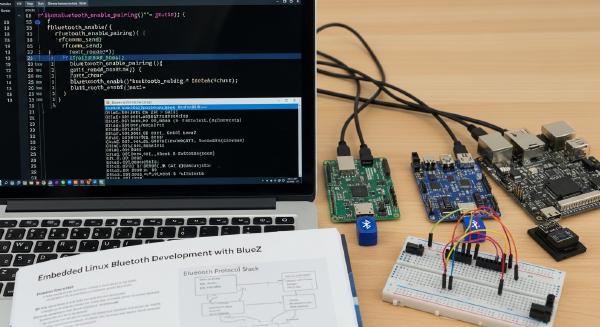
BlueZ on Embedded Linux: A Practical Guide to Bluetooth Classic and BLE
Bluetooth remains one of the most practical short-range wireless technologies for embedded systems, offering a balanced combination of low power consumption, broad compatibility, and mature software support. On Linux, nearly every Bluetooth application is built upon BlueZ, the official Bluetooth protocol stack maintained for the Linux kernel.
This guide walks through the complete workflow of developing Bluetooth applications on Embedded Linux—from verifying hardware and pairing devices, to creating Classic Bluetooth serial connections with RFCOMM, interacting with BLE peripherals through GATT, and finally integrating Bluetooth into native C applications.
Whether you’re working on a Yocto-based development board or a custom embedded Linux platform, the concepts and tools presented here provide a solid foundation for Bluetooth application development.
🔧 Preparing the Development Environment #
The examples in this article were validated using the following environment:
- Embedded Linux built with Yocto
- Linux Kernel 5.15
- USB Bluetooth adapter based on the CSR8510 chipset
- BlueZ userspace utilities
Most USB Bluetooth adapters supported by Linux use the btusb kernel driver, which is automatically loaded when the device is detected.
After connecting the adapter, verify that the kernel recognizes the hardware:
dmesg | grep Bluetooth
hciconfig -a
The first command checks kernel messages for Bluetooth initialization, while the second displays detailed information about every available Bluetooth Host Controller Interface (HCI).
If hciconfig is unavailable, BlueZ utilities are not installed.
On Ubuntu, installation is straightforward:
sudo apt install bluez bluez-toolsFor embedded Linux distributions such as Yocto or Buildroot, BlueZ typically needs to be included during image generation or cross-compiled separately.
Once installed, start the Bluetooth service:
systemctl start bluetooth
systemctl status bluetooth
At this point, both the kernel driver and the userspace daemon should be operational.
Understanding BlueZ Architecture #
BlueZ consists of two major components:
- bluetoothd — the background daemon responsible for Bluetooth management
- bluetoothctl — an interactive command-line client
Internally, almost every Bluetooth operation is exposed through D-Bus.
bluetoothctl simply converts user commands into D-Bus requests, while bluetoothd communicates with the Bluetooth controller through the kernel’s HCI layer.
This layered architecture allows applications to interact with Bluetooth through D-Bus without requiring direct access to low-level hardware interfaces.
📡 Pairing Devices with bluetoothctl #
Launch the interactive BlueZ shell:
sudo bluetoothctlThe prompt changes to:
[bluetooth]#Most pairing workflows follow the same sequence:
power on
agent on
default-agent
scan on
Each command serves a specific purpose:
| Command | Description |
|---|---|
power on |
Enables the Bluetooth adapter |
agent on |
Starts the pairing agent responsible for authentication |
default-agent |
Registers the active agent as the system default |
scan on |
Begins scanning for nearby Bluetooth devices |
During scanning, nearby devices appear with their MAC addresses and friendly names.
Example:
Device 11:22:33:44:55:66 HC-05Once the target device is found, stop scanning:
scan offBegin pairing:
pair 11:22:33:44:55:66Some devices require a PIN or passkey.
For common Classic Bluetooth modules such as the HC-05, the default PIN is often:
1234After successful pairing, mark the device as trusted and establish a connection:
trust 11:22:33:44:55:66
connect 11:22:33:44:55:66
When the terminal reports:
Connection successfulthe Bluetooth link has been established successfully.
You can inspect the device’s supported services at any time:
info 11:22:33:44:55:66Trusted devices can reconnect directly in future sessions without repeating the pairing process.
🔄 Using Classic Bluetooth as a Wireless Serial Port #
Many embedded applications still rely on the Serial Port Profile (SPP) because it provides transparent serial communication over Bluetooth.
SPP is implemented using RFCOMM, allowing applications to interact with remote devices exactly as if they were connected through a UART.
Determine the RFCOMM Channel #
Many SPP devices expose RFCOMM channel 1, although the exact channel can be verified using:
sdptool browseBind the Remote Device #
Create a local RFCOMM device:
sudo rfcomm bind 0 11:22:33:44:55:66 1Linux creates:
/dev/rfcomm0This behaves like a normal serial device.
Read incoming data:
sudo cat /dev/rfcomm0Transmit data:
echo "hello from i.MX6" | sudo tee /dev/rfcomm0Any terminal program capable of communicating with a serial port can now use /dev/rfcomm0.
When communication is complete, release the binding:
sudo rfcomm release 0Notes About RFCOMM #
Unlike physical UART devices, RFCOMM does not expose baud rate settings because Bluetooth handles packet transmission independently of serial timing.
Consequently, lightweight tools such as cat, echo, or custom applications often provide a simpler and more reliable interface than terminal emulators designed for traditional serial ports.
📶 Working with BLE Using GATT #
Bluetooth Low Energy operates very differently from Classic Bluetooth.
Instead of emulating a serial interface, BLE is built around the Attribute Protocol (ATT) and the Generic Attribute Profile (GATT).
BlueZ includes a built-in interactive GATT client inside bluetoothctl.
Scan for BLE Devices #
Begin scanning specifically for BLE advertisements:
scan leAfter discovering the target device, connect normally:
trust <MAC>
connect <MAC>
Enter the GATT submenu:
menu gattDiscover Available Services #
List every service and characteristic:
list-attributesTypical output resembles:
/org/bluez/hci0/dev_xx/service000a
/org/bluez/hci0/dev_xx/service000a/char000b
/org/bluez/hci0/dev_xx/service000a/char000d
Each characteristic includes:
- UUID
- Access permissions
- Read capability
- Write capability
- Notification support
Reading Characteristic Values #
Select a characteristic:
select-attribute /org/bluez/.../char000bRead its value:
readCharacteristic values are displayed as hexadecimal bytes.
For example:
54 65 6D 70 20 31decodes to:
Temp 1Receiving Notifications #
If notifications are supported:
notify onIncoming data is displayed automatically:
[CHG] Attribute ...
Value: ...
Writing Characteristics #
Select a writable characteristic:
select-attribute /.../char000dWrite a value:
write 0x01The meaning of the value depends entirely on the peripheral’s GATT specification.
When finished:
backreturns to the main Bluetooth shell.
For rapid BLE debugging, bluetoothctl alone provides nearly everything required for service discovery, characteristic inspection, reading, writing, and notification testing.
💻 Programmatic Bluetooth Control #
Interactive tools are ideal during development, but production applications typically require programmatic control.
Several implementation approaches are available.
Shell Automation #
Simple automation can be achieved by invoking:
bluetoothctlthrough shell scripts or by using the expect utility for interactive sessions.
This approach is convenient but becomes difficult to maintain as application complexity increases.
D-Bus Integration #
Most production software communicates directly with BlueZ through D-Bus.
Popular language bindings include:
| Language | Common Libraries |
|---|---|
| Python | pydbus, bleak |
| C | libdbus, GDBus (GLib) |
Using D-Bus provides complete access to:
- Device discovery
- Pairing
- Connections
- GATT services
- Characteristic operations
- Notifications
- Multi-device management
This is the recommended approach for production applications.
⚙️ Performing BLE Scans with Native C #
BlueZ also exposes low-level interfaces through libbluetooth.
Applications can communicate directly with the Bluetooth controller using HCI sockets, bypassing bluetoothctl entirely.
A typical BLE scanner performs the following sequence:
- Open the
hci0device. - Configure an HCI event filter.
- Set BLE scan parameters.
- Enable scanning.
- Receive advertising packets.
- Decode device addresses, RSSI, and advertisement payloads.
- Disable scanning.
The example program included above demonstrates exactly this workflow using the HCI socket interface.
When compiling, link against the Bluetooth library:
gcc scanner.c -lbluetoothThe application prints:
- Bluetooth device address
- RSSI
- Raw advertising payload
before automatically terminating after the configured scan duration.
Although HCI sockets provide excellent control over controller-level operations such as scanning, implementing complete GATT communication directly through HCI quickly becomes complicated due to the complexity of ATT transactions.
For that reason, most production applications combine both approaches:
- HCI sockets for controller-level operations when necessary
- D-Bus APIs for high-level GATT communication
This architecture provides a clean separation between low-level hardware control and application-layer Bluetooth services.
🚀 Summary #
BlueZ provides a comprehensive Bluetooth software stack for Linux, supporting everything from low-level controller management to high-level application development. By understanding the relationship between HCI, RFCOMM, GATT, D-Bus, and the bluetoothctl utility, developers can efficiently build both Classic Bluetooth and BLE applications on embedded platforms.
For quick validation, bluetoothctl remains an indispensable debugging tool. As projects mature, transitioning to D-Bus APIs or libbluetooth enables scalable, production-ready implementations capable of handling multiple devices, asynchronous communication, and complex Bluetooth workflows. Together, these interfaces make BlueZ a powerful foundation for embedded Linux systems requiring reliable wireless connectivity.