
With HTTPS adoption becoming standard, securing your web server with an SSL/TLS certificate is now essential.
Let’s Encrypt provides free SSL certificates, but they need to be renewed every 90 days. That’s where Certbot comes in—automating the process of obtaining, deploying, and renewing SSL certificates.
In this guide, you’ll learn how to set up a secure web server with Nginx and Certbot. We’ll cover:
- Installing Nginx
- Configuring Nginx server blocks
- Adding DNS A records
- Installing and using Certbot with Let’s Encrypt SSL
- Automating certificate renewal
1. Install Nginx on Ubuntu #
On Ubuntu, install Nginx using:
sudo apt install nginxCheck if Nginx was installed correctly:
nginx -vStart and enable Nginx at boot:
sudo systemctl start nginx && sudo systemctl enable nginxAllow Nginx through the firewall:
sudo ufw allow 'nginx full'
2. Configure Nginx Server Block #
Create a directory to store your site’s web files (replace example.com with your own domain):
sudo mkdir -p /var/www/example.com/htmlSet directory ownership and permissions:
sudo chown -R $USER:$USER /var/www/example.com/html
sudo chmod -R 755 /var/www/example.com
Create a sample index page:
vim /var/www/example.com/html/index.html<html>
<body>
<h1>Success! Nginx server block is working!</h1>
</body>
</html>Now, create a server block configuration:
sudo vim /etc/nginx/sites-available/example.comserver {
listen 80;
root /var/www/example.com/html;
index index.html;
server_name example.com www.example.com;
location / {
try_files $uri $uri/ =404;
}
}Enable it by creating a symlink:
sudo ln -s /etc/nginx/sites-available/example.com /etc/nginx/sites-enabled/Test Nginx configuration:
sudo nginx -tReload Nginx:
sudo nginx -s reload
3. Create DNS A Record #
Point your domain to your server’s public IP address with a DNS A record.
For example, in Google Domains:
- Type: A
- TTL: 300
- Data: your server’s public IP address
- Add both
example.comandwww.example.com
Verify DNS propagation:
dig example.com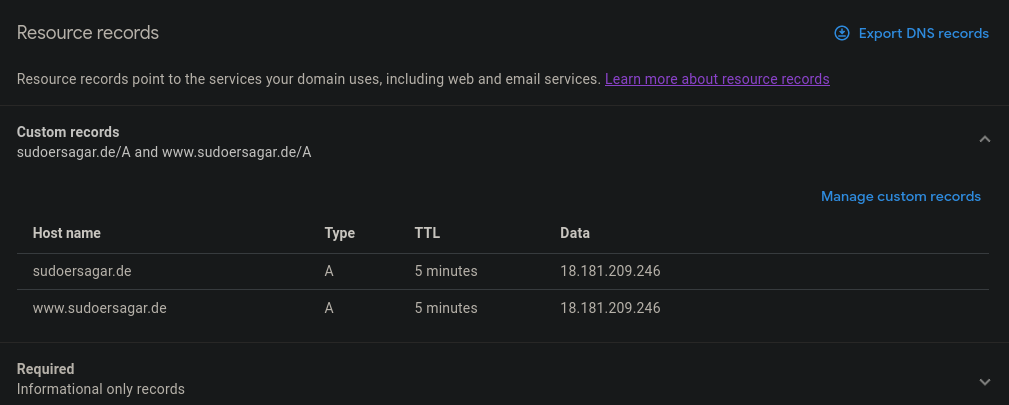
4. Install Certbot (Let’s Encrypt Client) #
First, remove any old Certbot package:
sudo apt remove certbotInstall Certbot using Snap:
sudo snap install --classic certbot
sudo ln -s /snap/bin/certbot /usr/bin/certbot
Check installation:
certbot --version5. Obtain and Install SSL Certificates #
For testing, request a staging certificate:
sudo certbot --nginx --test-certYou’ll be prompted to:
- Enter an email address for renewal notifications.
- Agree to the Let’s Encrypt terms.
- Optionally join the mailing list.
- Select the domains for the certificate.
Once verified, request a production SSL certificate:
sudo certbot --nginxCertbot will automatically configure Nginx for HTTPS.

6. Automate SSL Certificate Renewal #
Certbot runs a renewal timer every 12 hours. Certificates are renewed automatically when close to expiration.
Check the schedule:
systemctl list-timersTo manually renew:
sudo certbot renew
✅ Conclusion #
You’ve now successfully set up a secure Nginx web server with HTTPS using Let’s Encrypt and Certbot.
This configuration ensures your site benefits from:
- Free SSL certificates with automatic renewal
- Encrypted HTTPS connections for security and SEO ranking
- Easy scalability for multiple domains and subdomains
By combining Nginx and Certbot, you get a secure, automated, and production-ready web server.